When you receive the Hi-Pro hardware device, the box contains a CD. The CD contains the Hi-Pro driver, but you do not need to use a CD drive to read its contents. We have extracted the contents of the CD, and you can obtain the Hi-Pro driver through the following link:
If your operating system is Windows 10 or Windows 11, most of them are 64-bit operating systems, so you only need to install the 64-bit driver.
Hi-Pro Driver Installation Steps:
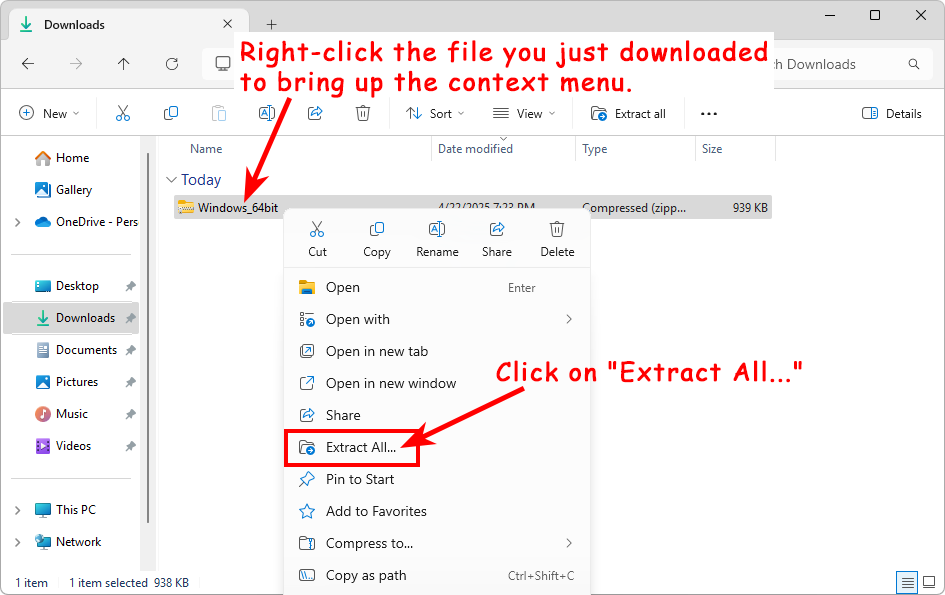
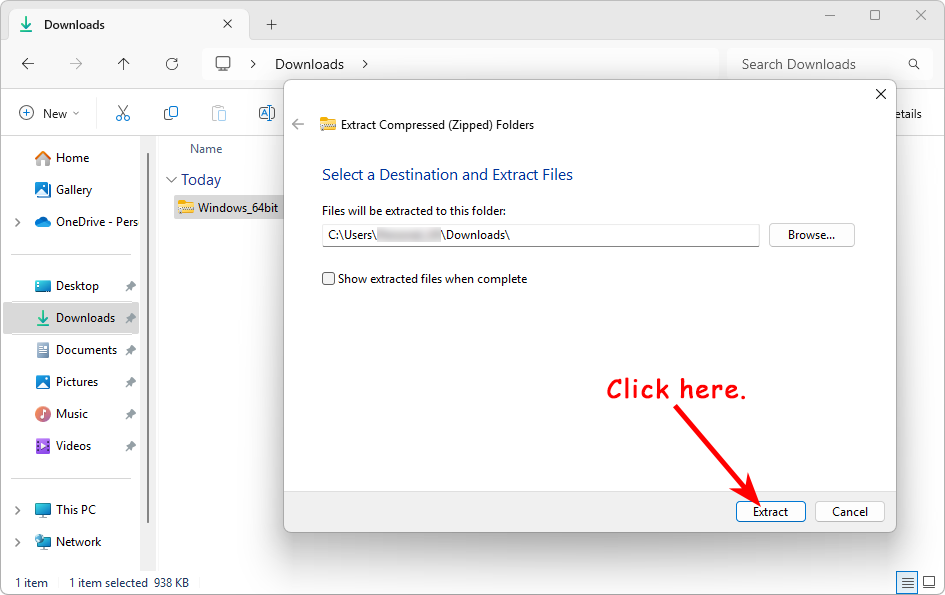
1. Unzip the downloaded driver compressed file:
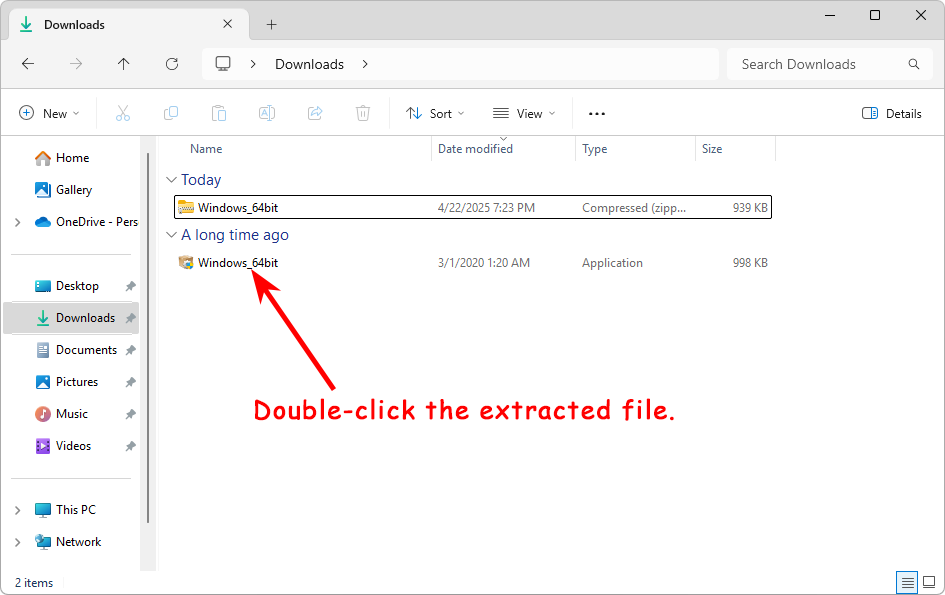
2. Double-click to execute the driver installation file:
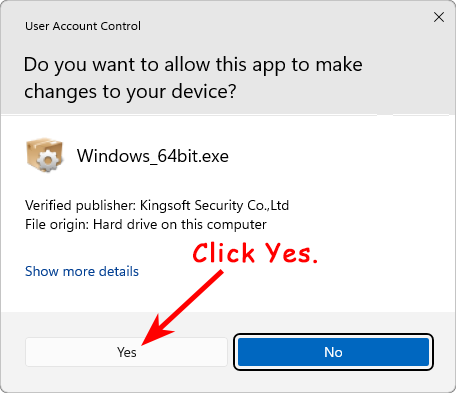
3. If the following dialog box appears, click Yes.
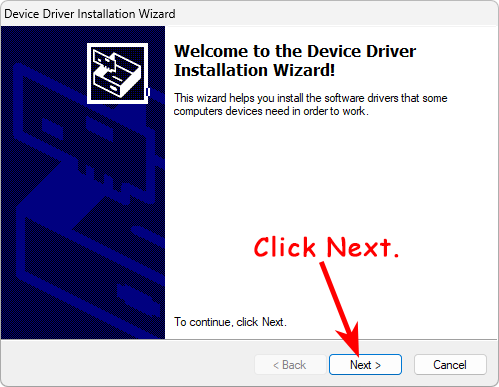
4.Then the driver installation dialog box will appear. Click the Next button to proceed with the installation.
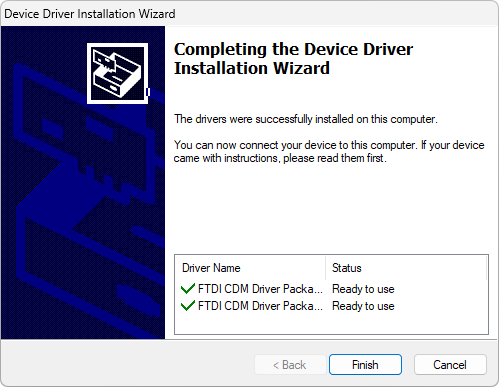
5. Once the driver installation is complete, the following interface will appear. Click the Finish button.
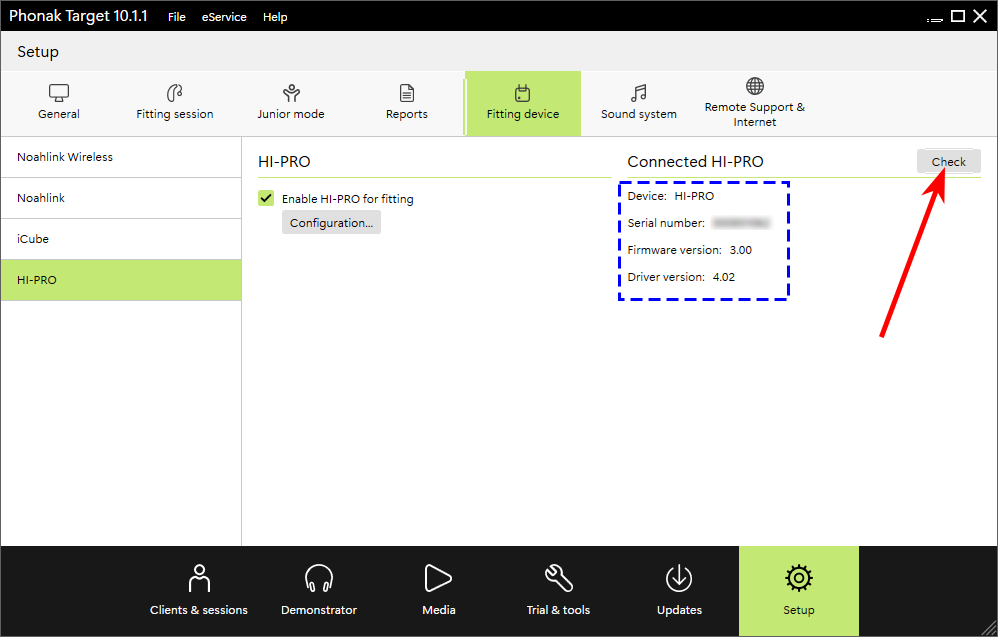
Once the installation is complete, the hearing aid programming software will detect the Hi-Pro hardware device.
Each brand’s hearing aid fitting software will display differently, so we will not list the specifics here.
Some brand’s hearing aid fitting software (such as the older version of the WIDEX fitting software.) may have specific requirements for the Hi-Pro port, requesting that the Hi-Pro hardware device use COM1.
Below are the steps to modify the Hi-Pro port:
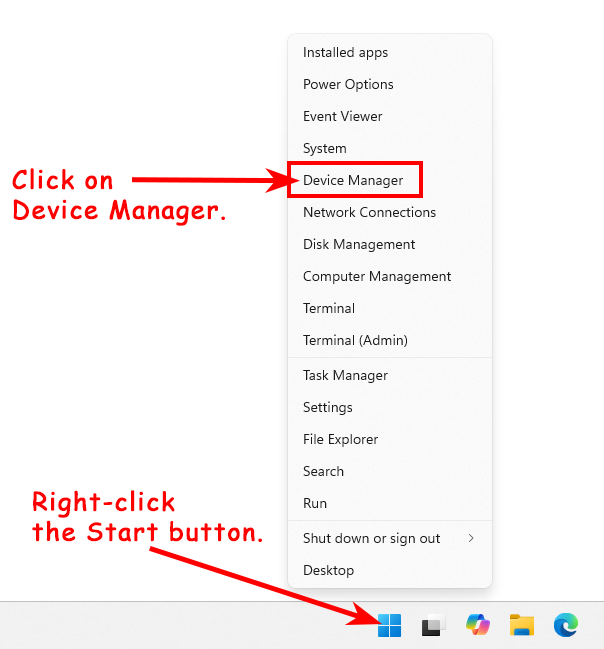
1. Open Device Manager:
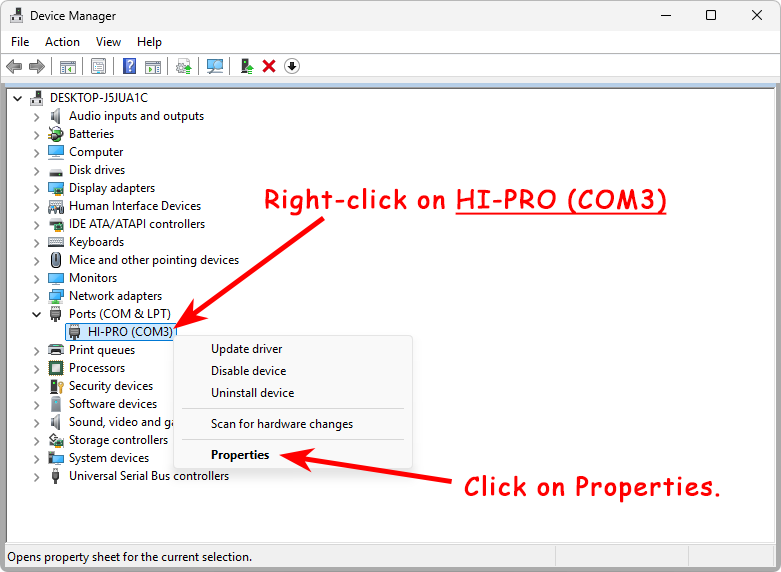
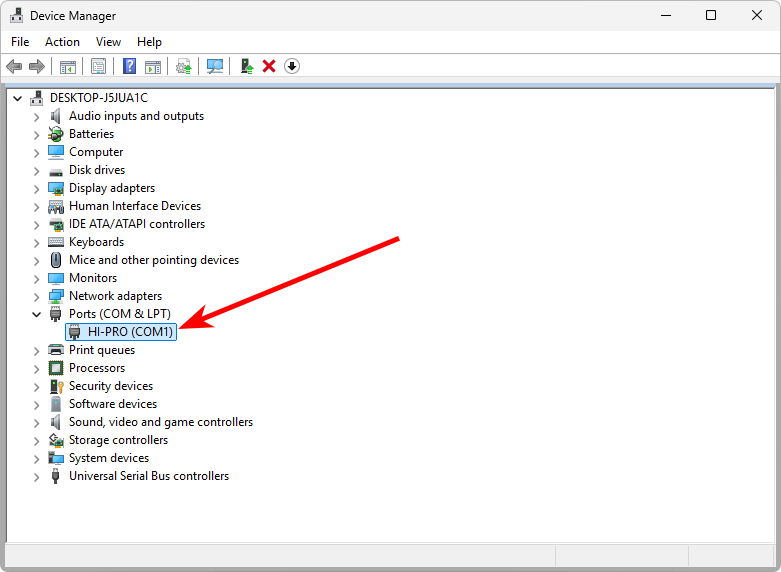
2. Expand the “Ports (COM & LPT)” section, and you will see “HI-PRO (COM3).” This indicates that the HI-PRO is properly connected to the computer, and the Hi-Pro driver has been correctly installed. The port for the Hi-Pro hardware device is COM3.
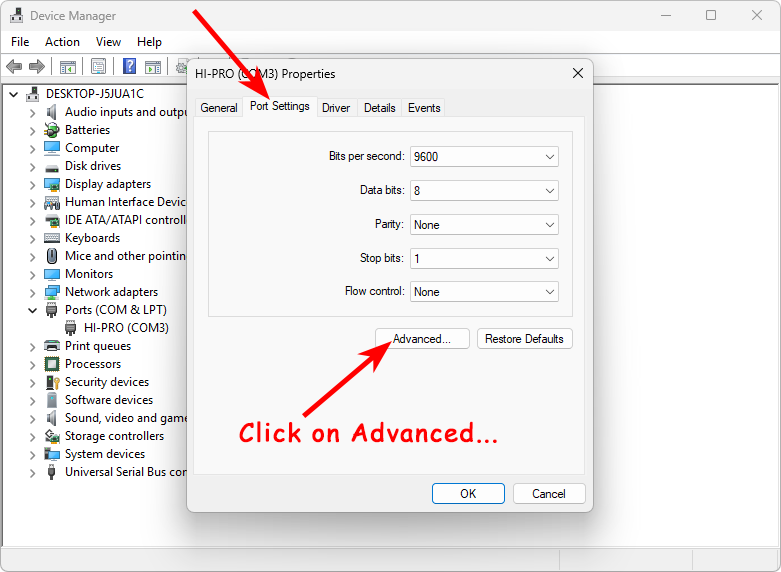
3. Click the “Port Settings” tab, then click the “Advanced” option.
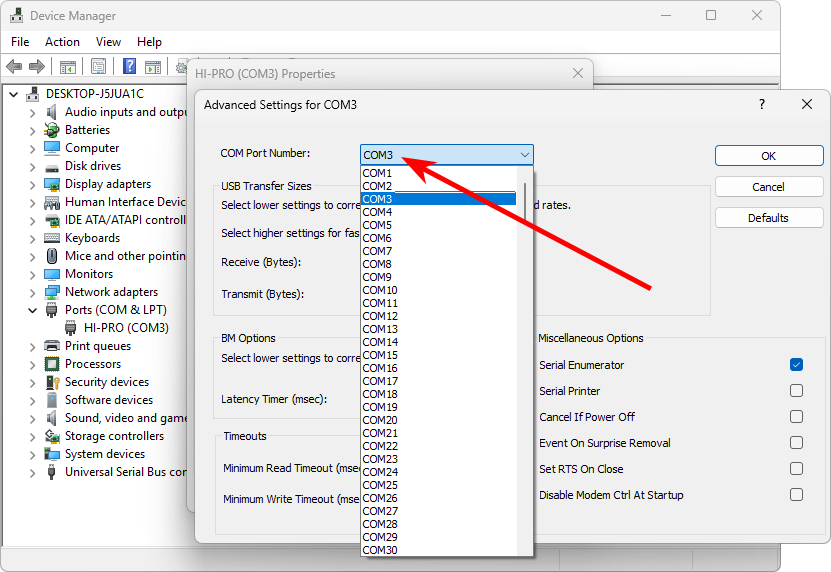
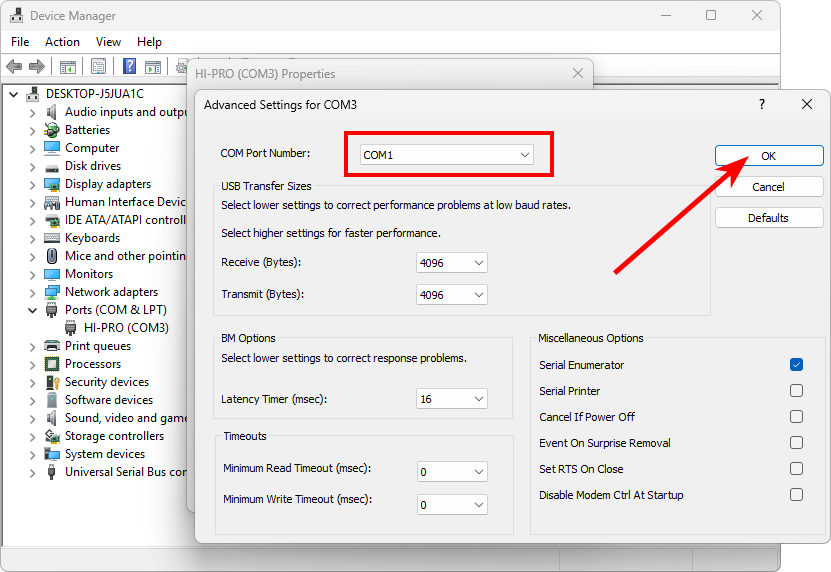
4. Change the COM port number to COM1, then click OK.
Then, we will see that the HI-PRO port number in Device Manager has been changed to COM1.